
Bloodborne PC Port: Native Windows & Linux Setup
Download the community port program from GitHub and bring your own decrypted PS4 Bloodborne game data (CUSA03173), updated to version 1.09. The program downloads contain the runtime and launcher; they do not include the game.
For Windows, follow Supermedo v1.5 or Mrsuss60 v0.2 below. For Linux, use bbport 0.4. If you need help choosing, start with PC port projects; otherwise go straight to the GitHub program releases and your system's installation steps.
Download the port program from GitHub
Choose the release that matches your project and operating system:
| Project | GitHub program release | File to select |
|---|---|---|
| ProjectSupermedo Windows | GitHub program releasewindows-v1.5 | File to selectBloodborne-Windows.zip |
| ProjectMrsuss60 Windows | GitHub program releasev0.2 | File to selectbloodborne_pc_windows_port_v0.2_release.zip |
| Projectdeadinside28 Linux bbport | GitHub program release0.4 | File to selectBloodborne-bbport-x86_64.AppImage |
On the release page, open Assets and select that program file. Keep the maintainer, tag and filename together when following the next steps. If you are choosing another native project such as bbhost, use PC port projects to reach its own setup instructions.
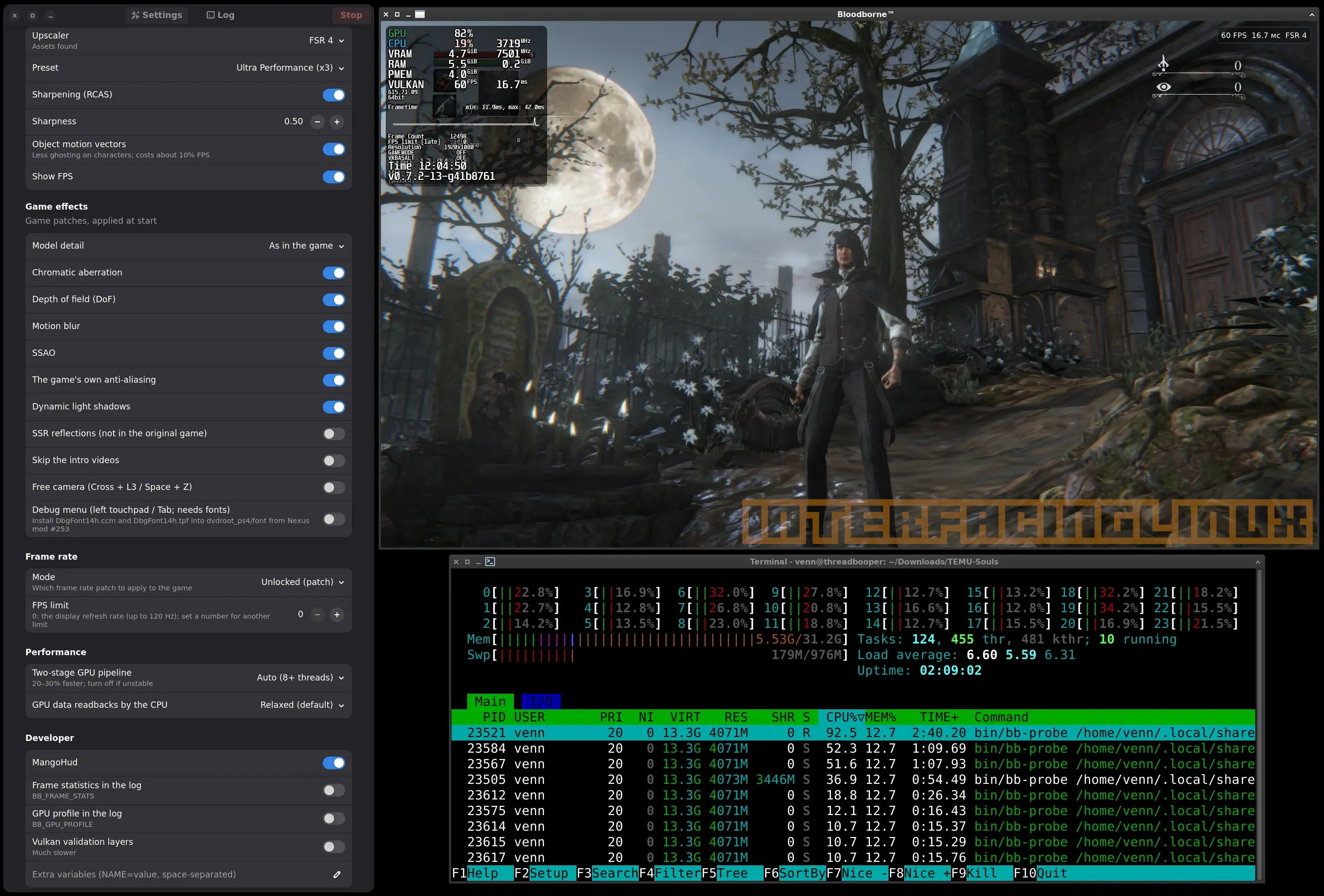
Bloodborne running through bbport on Linux, with the launcher beside the game.
Check your PC and storage
| Installation route | What your PC needs |
|---|---|
| Installation routeSupermedo Windows v1.5 | What your PC needsWindows 10 1903+ or 11, 64-bit; Vulkan 1.3 and current graphics drivers. Allow about 6 GB of free memory (RAM plus pagefile), or 10 GB for 1440p/4K. The package includes its software components. |
| Installation routeMrsuss60 Windows v0.2 | What your PC needsWindows 10/11, 64-bit; an AVX2-capable x86-64 CPU, Vulkan 1.3, current drivers and Python 3.10+. Use an NVIDIA GTX 10-series or newer, AMD RX 400-series or newer, or Intel Arc A-series GPU. |
| Installation routeLinux bbport 0.4 | What your PC needsx86-64 Linux and Vulkan 1.3. Read the launcher's CPU check: CPUs missing AVX, BMI1, MOVBE, LZCNT, POPCNT or SSE4.2 are rejected. Use the AppImage to begin without a source build. |
For storage, check the size of your own game directory in your file manager, then add room for the program, extracted files, saves and shader cache. Program downloads are about 114 MB for Supermedo, 189 MB for Mrsuss60 and 885 MB for the Linux AppImage. If you need the Linux extract-and-run workaround, allow about 2 GB more for the unpacked AppImage.
Check your game files and version
Choose the actual CUSA03173 game folder, containing these entries:
| Entry | What to check |
|---|---|
Entryeboot.bin |
What to checkThe executable belongs to your version 1.09 game data |
Entrysce_module/ |
What to checkThe game's module directory is present |
Entrydvdroot_ps4/ |
What to checkThe game's data directory is present |
| EntryThe rest of your game folder | What to checkKeep the complete contents of your own prepared copy |
A folder called CUSA03173 is only a label. Check the version record for your own copy as well. On Linux, the launcher and run.sh also examine the executable and explain when the update is missing, the executable is old, or the edition is wrong. Leave this check enabled.
On Linux bbport, the original 1.00 base game alone crashes at startup. A separate update folder beside it does not satisfy the requirement: the game folder you select must already contain the 1.09 version.
Use CUSA03173 v1.09 for the three setup routes below. Supermedo needs 1.09 for its community frame-rate, resolution and effects patches; other game versions run at 30 FPS there. If your copy is CUSA00900, changing its folder name will not change its executable. Stop here if you have a different edition, missing files or an unknown version; prepare the required input before continuing.
Install on Windows
Supermedo Windows v1.5
- Extract
Bloodborne-Windows.zipinto a folder for the program. - Open Bloodborne.exe.
- In Game & effects, select your prepared game folder containing
eboot.bin. Open Play → Ready check and check for Game version 01.09. If it shows another version or?, recheck your prepared copy before using the community patches. - Start with 60 FPS. If you have an RTX 20-series or newer GPU with current drivers, you can select Graphics → Upscaler → DLSS for DLSS Super Resolution. Use another available upscaler on other GPUs.
- Press PLAY. At character creation, press Enter to accept the name or Esc to cancel the name dialog.
If the preview is blank, you can still finish character creation and see your character in the game.
After saving the configuration, Play Bloodborne.exe starts with those settings. To update the program, use Update, or Advanced → Check for updates. Back up your saves first.
Mrsuss60 Windows v0.2
- Install Python 3.10 or newer. Open a terminal and run
python --versionto check that it is available. - Extract
bloodborne_pc_windows_port_v0.2_release.zipinto your prepared game directory, besideeboot.binanddvdroot_ps4. - Open a terminal in that directory and run
python launcher.py. If the package includeslaunch_gui.bat, you can double-click that shortcut instead. - Select your
eboot.binor game folder in the launcher. - Choose 60 FPS as your starting target. Use FSR 3.1 and a lower internal resolution, such as 1280×720, if you need a lighter starting setup.
- Click Launch Bloodborne.
At character creation, type your name into the dialog and press Enter to confirm it. Press Esc to use the default name. Mrsuss60 v0.2 fixes the older crash when you clicked Finalize.
For either Windows project, continue to startup and loading checks if the game fails to open.
Install on Linux
Use Bloodborne-bbport-x86_64.AppImage from the Linux 0.4 release above.
-
Put the AppImage in a folder where you want to keep the port program.
-
Give it permission to run. In a terminal in that folder, use:
chmod +x Bloodborne-bbport-x86_64.AppImage ./Bloodborne-bbport-x86_64.AppImage -
In the launcher, choose your prepared
CUSA03173directory in Game folder. -
Start with FSR 3 and leave New memory and translation model off. On Steam Deck, choose 1280×720 output.
-
Start the game from the launcher. Read any file or CPU check message before changing other settings.
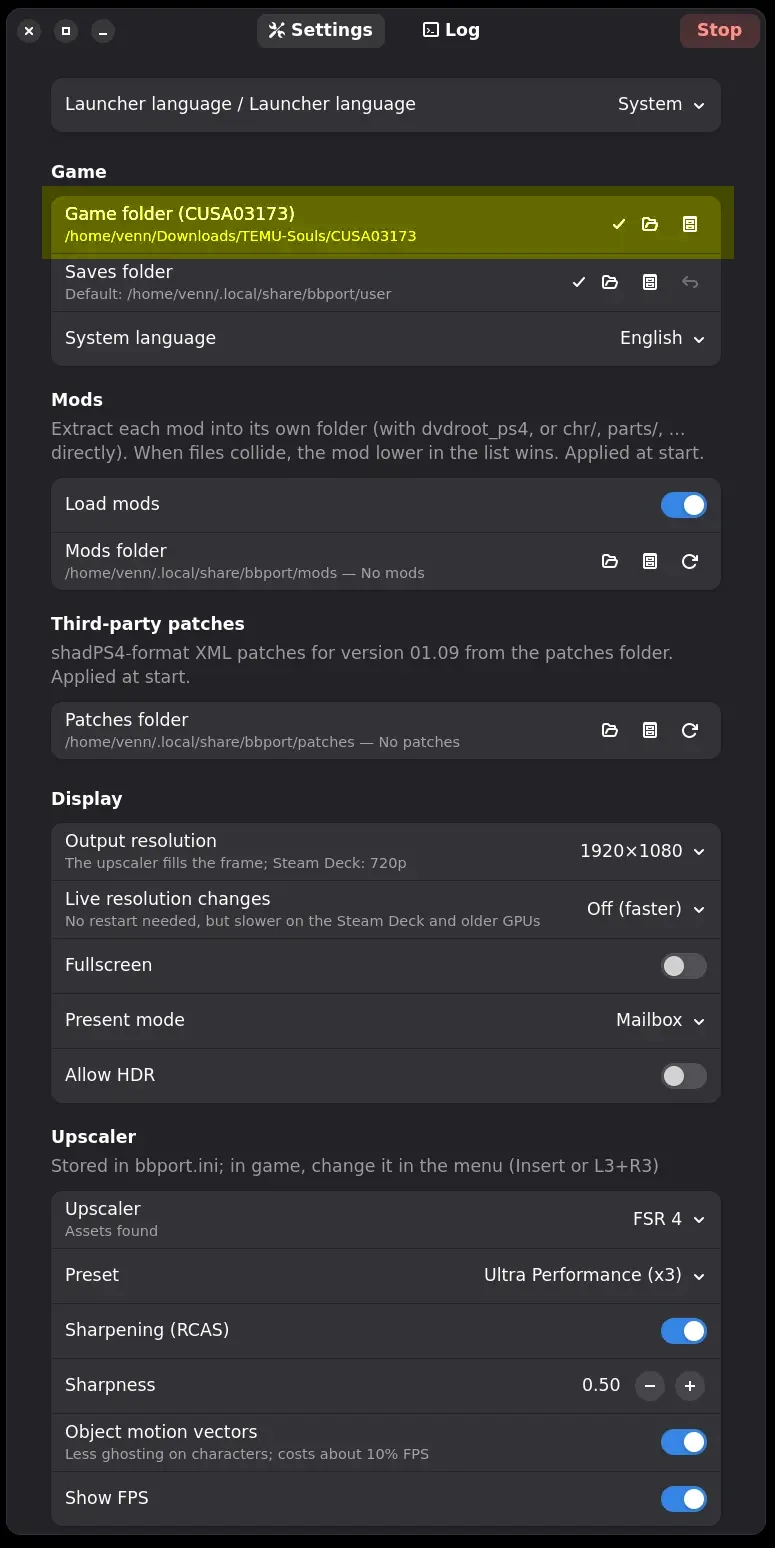
Use the highlighted Game folder picker to select your CUSA03173 directory.
The AppImage keeps its data under ~/.local/share/bbport; its saves are in the user directory there. You can select a different saves folder in the launcher.
If the AppImage cannot mount, follow the AppImage error steps.
If you already built the Linux source version, run it from the repository with:
BB_GAME_DIR=/path/to/CUSA03173 bash run.sh
Its graphical launcher starts with bash launcher/bb-launcher.sh. Keep these repository commands separate from the AppImage steps.
Check the first launch and exit
Once you reach a playable screen, check movement, sound and saving. Use the keyboard and mouse page for your project's keys. On Supermedo v1.5, disconnect controllers and their receivers when testing ordinary keyboard input.
Find your saves before making a backup:
- Supermedo: open Game & effects → Saves folder → Open. The default is
user/besideBloodborne.exe; use the location you selected if you changed it. - Mrsuss60: check
user/in the program/game directory. - Linux AppImage: check
~/.local/share/bbport/user, or the different saves folder selected in the launcher. Linux source builds default to the repository'suser/; use the launcher's selected saves folder if you changed it.
Before closing the game, let the current save finish and use the game's quit option to return to the title screen. Then close the game window. Start the port again, load the save you just made, and check that your progress is still there. If normal exit fails, save the error text and use the support checklist before your next attempt.
After installation
FAQ
Is this an official Bloodborne PC release? Can I buy it on Steam?
These are independent community projects, unaffiliated with Sony or FromSoftware. Their program downloads do not include Bloodborne. Adding the Linux AppImage as a Non-Steam Game gives you a Steam launch shortcut; it does not supply the game files or turn the port into a Steam purchase.
Can I install it without the required game files?
The program can be downloaded separately, but it needs your own decrypted CUSA03173 v1.09 folder to run Bloodborne. Finish the file check before launching it.
Can it run at 60 FPS?
These three routes offer a 60 FPS mode with the required 1.09 game data, along with other frame-rate choices. Choose 60 in the launcher to start. If play stutters or loading fails, use the symptom checks before changing several settings at once.
Do I need shadPS4 or rainmakerv3's BBLauncher?
The native ports have their own launchers and run without installing those applications. If you are choosing between the two routes, read Native Port vs shadPS4.